How to Install Smart Lights in an Apartment Without a Hub
You want smarter lighting in your apartment, but the idea of buying a hub, a bridge, and extra hardware just to control a light bulb sounds exhausting. The good news is you don’t need any of that. You can install smart lights in an apartment without a hub, no rewiring, no landlord permission required, no complicated setup. Just screw in a bulb, open an app, and you’re done.
This guide walks you through exactly how to do it, including which bulbs actually work for renters, what you need to set up before you start, and how to connect everything to Alexa or Google Home. If you’ve been putting this off because it felt too technical, you’ll feel differently by the end of this.
What “No Hub” Actually Means (And Why It Matters for Renters)
A hub, sometimes called a bridge or gateway, is a small box that sits between your smart bulbs and your WiFi router. Philips Hue is the most well-known example. Without it, their bulbs simply won’t connect. That’s a reasonable tradeoff for someone building a large smart home, but for a renter who just wants a few bulbs in the living room and bedroom, it’s overkill.
Hub-free smart bulbs cut out that middleman entirely. They connect directly to your home WiFi or pair with your phone via Bluetooth. No extra box. No $60 upfront cost before you’ve even bought a single bulb. You plug in the bulb, set it up through an app, and that’s it.
For renters specifically, this matters even more. You’re not drilling holes or running wires. Everything is reversible. When you move out, you just unscrew the bulbs and take them with you, no damage, no deposit lost.
Wi-Fi vs. Bluetooth Smart Bulbs: Which One Should You Pick?
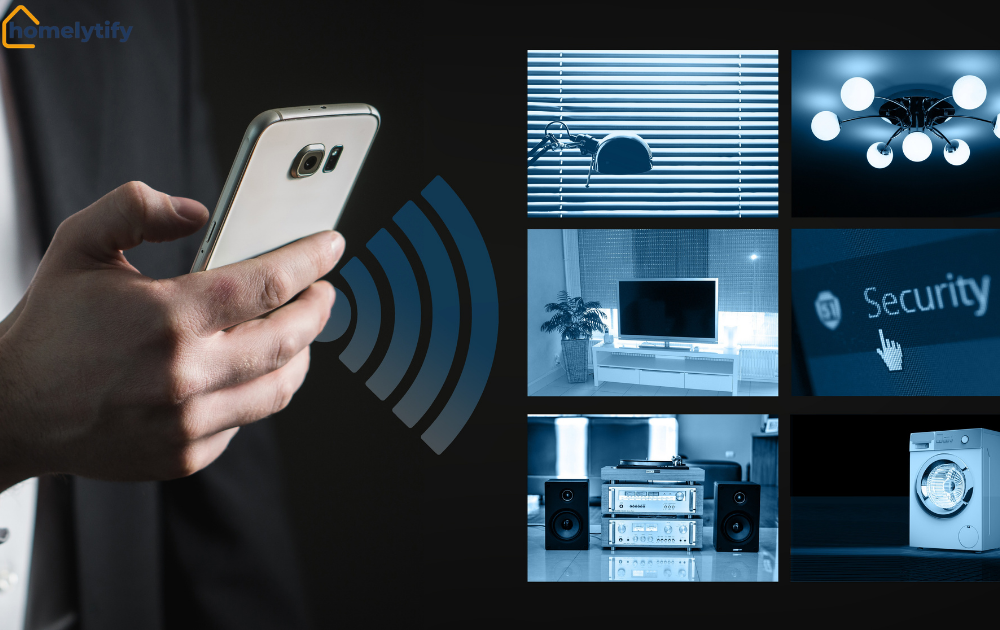
This is where a lot of beginners get confused, and honestly, it’s the most important decision you’ll make before buying anything. Both types work without a hub, but they behave differently in real life.
WiFi Smart Bulbs
WiFi bulbs connect directly to your home’s wireless network, just like your phone or laptop. Once they’re set up, you can control them from anywhere, sitting on your couch or halfway across the world. Schedules, automation, and voice control all work over WiFi.
The downside is that they rely on a stable internet connection. If your router drops, the app-based controls go with it. They also only work on 2.4 GHz networks, which most routers still broadcast alongside 5 GHz. If your phone is connected to 5 GHz when you’re setting up a WiFi bulb, the pairing process will fail, which trips up a lot of first-timers.
Good WiFi bulbs for apartments: TP-Link Kasa, Wyze Bulb Color, LIFX, and Govee.
Bluetooth Smart Bulbs
Bluetooth bulbs pair directly with your phone, no WiFi needed at all. Setup is almost instant. Open the app, hit connect, and done. They also work during internet outages because there’s no cloud involved.
The catch is the range. Bluetooth typically maxes out around 30 feet, and walls eat into that. In a large apartment or if your phone is in another room, the connection can feel sluggish or drop entirely. You also can’t control them when you’re away from home.
Good Bluetooth bulbs: GE Cync, Sengled Bluetooth, and most basic Govee models.
The Honest Answer
For most apartments, WiFi smart bulbs are the better choice. They give you remote control, work with Alexa and Google Home without extra hardware, and support scheduling so lights turn on before you get home from work. Bluetooth is fine for a bedside lamp or a single accent light where you’ll always be nearby.
What You Need Before You Start
The setup itself takes about five minutes, but there are a few things worth checking first so you don’t hit a wall halfway through.
A 2.4 GHz WiFi network. This is non-negotiable for WiFi bulbs. Log in to your router settings or check your WiFi network list. If you only see a 5 GHz network, you’ll need to enable 2.4 GHz. Most modern routers broadcast both automatically, so this usually isn’t an issue.
A compatible light socket. Most smart bulbs come in A19/E26 (the standard screw-in size used in most US lamps and ceiling fixtures), but check your existing sockets first. Some apartments have candelabra sockets (E12) or recessed cans that need a GU10 bulb. Buying the wrong base size is a frustrating rookie mistake.
A smartphone with the bulb’s app installed. Do this before you unbox the bulb. Searching for the app mid-setup with one hand holding a bulb is annoying.
Your WiFi password is handy. You’ll be prompted for it during setup.
One thing competitors don’t mention: check whether your existing light switch is a dimmer switch. Most smart bulbs are not compatible with dimmer switches and can flicker or fail to connect when installed in one. Stick to a standard on/off switch, or flip the dimmer to 100% before pairing.
How to Install Smart Lights in an Apartment Without a Hub: Step-by-Step
The actual installation process is surprisingly simple once you understand what you’re doing. Here’s exactly how it works with most WiFi smart bulbs.
The first time I did this, I spent 20 minutes convinced the bulb was defective. The app kept timing out during pairing. I reset the bulb twice. I uninstalled and reinstalled the app. Nothing worked. Then I checked my phone’s WiFi. I was on the 5 GHz band. Switched to 2.4 GHz, opened the app again, and the bulb connected in under 40 seconds. That one overlooked detail wasted half an hour. I’m putting it right here so it doesn’t waste yours.
Step 1: Screw In the Bulb
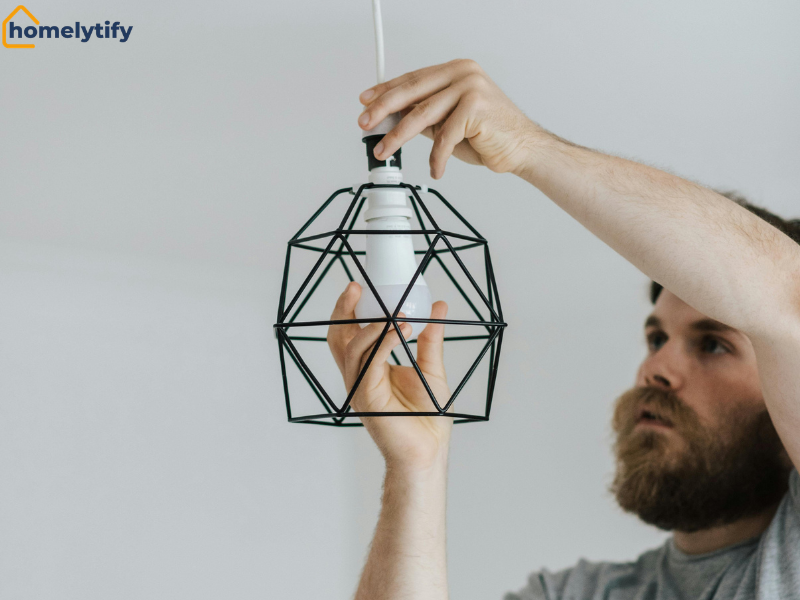
Turn off the light switch, screw in the bulb, then turn the switch back on. The bulb should flash or pulse, which usually means it’s in pairing mode and ready to connect.
If the bulb doesn’t flash, it may have already been paired to someone else’s account (common with returned bulbs) or needs a reset. Reset it by turning the switch off and on three to five times quickly. The bulb will flash a few times to confirm the reset.
Step 2: Download the Right App
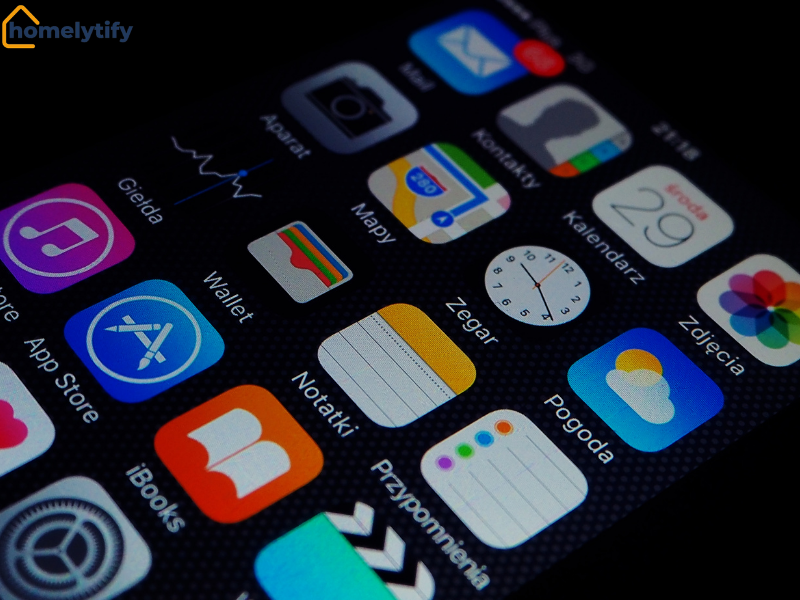
Each brand has its own app. Kasa bulbs use the Kasa Smart app. Wyze bulbs use the Wyze app. LIFX has its own app. Govee uses the Govee Home app. Download it, create a free account, and keep the app open.
Avoid using a third-party generic smart home app at this stage; stick with the manufacturer’s app for the initial setup. You can add the bulb to Google Home or Alexa after it’s already configured.
Step 3: Put the Bulb in Pairing Mode
Most apps have an “Add Device” or “+” button. Tap it, select the bulb type, and the app will start scanning. The bulb needs to be in pairing mode, flashing for this to work. If it stopped flashing, reset it again using the on/off method described above.
Step 4: Connect to Your WiFi Network
The app will ask for your WiFi network and password. Make sure your phone is connected to the 2.4 GHz network at this point, not 5 GHz. This is the single most common reason setup fails. If you have a combined network name (same SSID for both bands), temporarily connect your phone to the 2.4 GHz band if your router lets you separate them, or just try the setup as-is. It usually works.
The app transfers your WiFi credentials to the bulb, and within 30 to 60 seconds, it should connect and show as online.
Step 5: Name Your Light and Organize by Room
Once connected, name the light something clear: “Bedroom Lamp,” “Kitchen Ceiling,” “Living Room Corner.” This matters more than it seems. When you start adding multiple bulbs, vague names like “Smart Bulb 1” make everything confusing.
If you plan to use voice control, the name you give the light is what you’ll say out loud. I made this mistake with my first two bulbs, naming them “Light 1” and “Light 2” in a rush, then had to ask Google to “turn off Light 1” every night, which felt ridiculous. Renaming takes 30 seconds inside the app. Do it immediately.
Group lights by room inside the app so you can turn an entire room on or off with one tap. A few weeks into using my setup, I linked everything to Google Home, and “Hey Google, good night” turned the whole apartment off from bed. That moment, $40 total spent, zero rewiring, was when the whole thing clicked for me.
Step 6: Set Up Voice Control (Optional but Recommended)
If you use Alexa or Google Home, linking your bulbs for voice control is worth doing. Skip ahead to the next section for the exact steps — it takes about three minutes and works for both platforms.
How to Connect Smart Lights to Alexa or Google Home Without a Hub
Most hub-free bulbs connect to Alexa and Google Home through a cloud-to-cloud integration, meaning both apps talk to each other over the internet using your account credentials. You don’t need a hub for this because the bulb’s own cloud handles the relay.
For Alexa: Open the Alexa app → Devices → Add Device → Light → choose your brand. It’ll ask you to enable a “skill” (basically a plugin) and sign in with your Bulb account. Once linked, Alexa discovers your lights automatically.
For Google Home: Open the Google Home app → Add → Set up device → Works with Google → search for your bulb brand → sign in. Google Home pulls in all your lights and lets you organize them into rooms.
A detail most guides skip: once you’ve linked your account in Alexa or Google Home, any new bulbs you add later in the same app will appear automatically without repeating this step. The first setup takes a few minutes, and every bulb after that takes about 30 seconds.
You can also create routines inside Alexa or Google Home, for example, “Good Morning” could turn on the kitchen light at 7 AM and set it to a bright white, while “Good Night” dims the bedroom to 10% and turns everything else off. These routines run on a schedule and don’t require the manufacturer’s app to be open.
Mistakes That Catch Most Beginners Off Guard
Most smart light setups fail not because the bulbs are bad, but because of a few very preventable errors.
Buying bulbs before checking your socket type. A19 bulbs won’t fit candelabra fixtures, and if your apartment has recessed lighting, you’ll need PAR or BR bulbs or GU10 spotlights. Check the existing bulb type before you buy.
Leaving the smart bulb on a dimmer switch. Dimmer switches cut power to control brightness the old-fashioned way, which confuses smart bulbs. It can prevent them from pairing and sometimes causes flickering even after setup. Use a standard on/off switch, or replace the dimmer with a standard switch that’s typically allowed in rentals and takes about 15 minutes.
Setting up from a 5 GHz connection. This one is responsible for more failed setups than any other issue. When your phone is on 5 GHz, and the bulb only supports 2.4 GHz, they can’t talk during pairing. Check your WiFi settings before you start and switch bands if needed.
Not resetting a used or returned bulb. If you bought a bulb that’s been previously set up, it’s still connected to someone else’s account. It won’t pair until you factory reset it. The reset process (toggling the switch 3 to 5 times) takes 10 seconds and fixes the problem every time.
Installing too many WiFi bulbs on a weak router. Each WiFi smart bulb is a device on your network. Older or cheap routers can struggle when you add 8 to 12 bulbs on top of phones, laptops, and a TV. If you notice dropped connections or slow app response after adding several bulbs, your router may be the bottleneck. A mesh WiFi system helps, or you can mix in a few Bluetooth bulbs in spots where you don’t need remote access.
Smart Lighting Ideas That Actually Work in Small Apartments
Here’s where most smart lighting guides go generically. “Set the mood” isn’t advice, it’s filler. Here’s what actually works in apartments.
The numbers back this up. The 2025 Smart Home Technology Trends Survey by Harbor Research surveyed 611 households across the U.S. and Canada. It found that overall smart home adoption jumped from 49% to 59% in a single year, and smart lighting landed in the top four most adopted categories.
The apps are more stable, the bulbs are cheaper, and the setup headaches that frustrated early users are mostly gone. You’re not experimenting. You’re catching up to something that’s already working for a lot of people in apartments just like yours.
Warm light in the evening, cool light in the morning. Most people don’t realize that the color temperature of your bulbs affects how awake or sleepy you feel. Set your smart bulbs to a warm yellow (2700K) after 7 PM as part of your relaxing evening habits, and schedule them to shift to a cooler white (5000K) in the morning. This alone has a noticeable effect on sleep quality. You can automate this through Alexa routines or in-app schedules without touching a switch.
Use a single color-changing bulb in a lamp for ambiance. You don’t need to replace every bulb in your apartment. Put one RGBW bulb in a floor lamp or table lamp in the living room and use it as an accent light. A deep amber or soft pink in the background during a movie makes a bigger difference than people expect.
Automate lights based on sunrise and sunset. Most smart bulb apps support sunrise/sunset triggers rather than fixed times. This means your entry lamp adjusts automatically as the seasons change. You set it once and forget it.
Create an “Away” schedule to deter opportunistic theft. Set your living room light to turn on and off at random intervals when you’re out. This takes two minutes to configure and is a feature most renters never think to use.
Don’t overdo it. Replacing every bulb at once is expensive and unnecessary. Start with the living room and bedroom, the two spaces where lighting matters most, and expand from there as you get comfortable with the system.
Conclusion
Getting smart lighting set up in your apartment is genuinely not complicated once you know what you’re working with. The single biggest thing to understand is that you don’t need a hub; a WiFi bulb connects directly to your network, and everything else runs through your phone or voice assistant. No extra hardware, no permanent installation, nothing your landlord needs to know about.
Start simple. Pick one or two WiFi bulbs, install them in the spaces where you spend the most time, connect them to Alexa or Google Home if you want voice control, and build from there. The technology has gotten straightforward enough that the setup takes less time than reading this article.
The one thing worth being careful about is your WiFi band. Make sure you’re on 2.4 GHz during pairing, and that single step will save you from most of the frustration other people run into. Everything else is just screwing in a bulb and following an app.
Frequently Asked Questions
Do I need to call my landlord before installing smart bulbs?
No. Smart bulbs are a direct replacement for regular bulbs, with no wiring, no drilling, and no permanent changes. You screw them in and screw them out. Most leases don’t restrict this, but check yours if you’re unsure.
Can smart bulbs work without the internet?
WiFi smart bulbs typically need internet for app control, but some (like GE Cync) have Bluetooth as a backup. Bluetooth smart bulbs work without the internet as long as your phone is within range. Schedules and voice commands usually require an active connection.
Why won’t my smart bulb connect during setup?
The most common reason is a 5 GHz WiFi connection. Smart bulbs only support 2.4 GHz. Make sure your phone is connected to the 2.4 GHz band before pairing. If that’s not the issue, try resetting the bulb by toggling the switch off and on five times quickly.
Can I use smart bulbs with a regular lamp, not just ceiling fixtures?
Yes, and honestly, lamps are the easiest place to start. Any lamp with a standard E26 screw socket works with A19 smart bulbs, which are the most common type available.
Do WiFi smart bulbs slow down my internet?
Not meaningfully. Each bulb uses a very small amount of bandwidth for status updates and commands. The issue is that older routers struggle with too many connected devices. If you’re adding more than 6 to 8 bulbs to an older router, you may notice occasional sluggishness.