Smart Bulb WiFi Setup Problems and Fixes: Easy Guide
You screw in the bulb, open the app, follow every step, and nothing happens. The app just spins, says “device not found,” or connects for two seconds and then drops. If you’re dealing with smart bulb WiFi setup problems, you’re not doing anything wrong. This is one of the most common frustrations people run into when setting up smart home lighting for the first time.
This guide covers exactly why it happens and how to fix it, with no technical knowledge needed. Whether you’re using Philips Hue, Kasa, Govee, Tuya, or some no-name bulb from an online store, the fixes here apply to all of them.
Why Your Smart Bulb Is Not Connecting to WiFi (And What’s Really Going On)
Most smart bulbs aren’t complicated devices, but they do have one strict requirement: they need a very specific type of WiFi signal to work. When that requirement isn’t met, the bulb just won’t connect, and the app gives you zero useful information about why.
The three most common reasons a smart bulb won’t connect are: the wrong WiFi band, a weak signal, or a setup process that wasn’t done in the right order. Almost every smart bulb connection problem falls into one of these three buckets.
Before you do anything else, it helps to understand one key fact: most budget and mid-range smart bulbs only work on 2.4 GHz WiFi. They physically cannot connect to a 5 GHz network. Your phone, on the other hand, prefers 5 GHz, and that mismatch causes more setup failures than anything else.
What the Data Says: You’re Not the Only One Struggling
If your smart bulb refuses to connect and you’re starting to wonder whether you’re just bad at this, here’s something that might help: almost everyone runs into this. One in three Americans gets frustrated with their smart home devices every single week. That’s not a niche complaint — it’s the norm.
A February 2025 Secure Data Recovery survey found that connectivity issues topped the list for nearly 90% of owners, and a third said the setup process is too complicated. The instructions are vague, the apps are under-tested, and the fixes are rarely explained clearly. This is a design problem, not a you problem — and the rest of this guide covers exactly how to fix it.
The 2.4 GHz vs 5 GHz Problem Nobody Tells You About
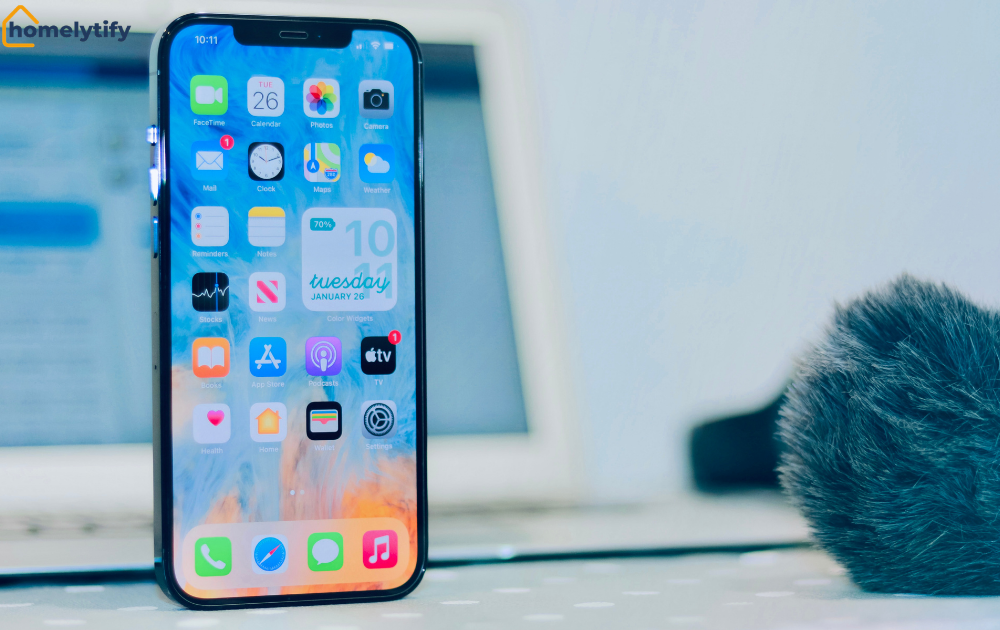
This is where things usually fall apart for most people.
How to fix it:
Go into your phone’s WiFi settings and manually connect to your 2.4 GHz network before opening the smart bulb app. If your networks share the same name, check your router settings or admin panel. Most routers let you give them separate names, something like “HomeNetwork_2.4” and “HomeNetwork_5G.” That one change alone fixes the problem for a huge number of people.
If you have a mesh network (like Eero, Google Nest WiFi, or similar), the bands are often merged under one name, which can cause pairing issues. In that case, try temporarily disabling the 5 GHz band from your router’s admin page while you complete the setup, then re-enable it.
A common mistake here is standing right next to the router during setup. When you’re close, your phone almost always jumps to 5 GHz. Try moving a bit further away sometimes, that’s enough to stay on 2.4 GHz.
How to Reset Your Smart Bulb the Right Way
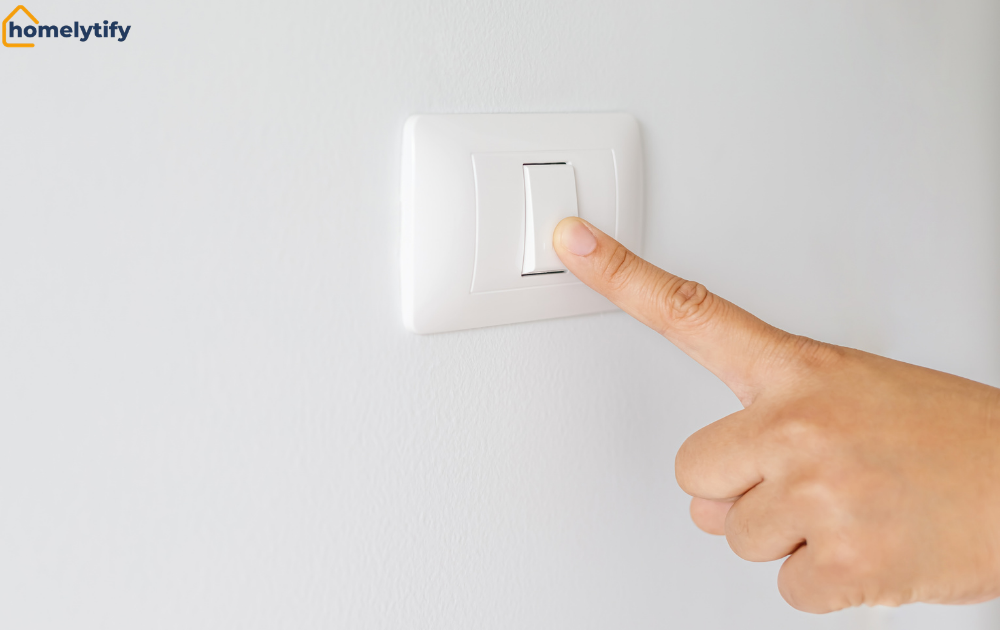
If the bulb has been used before, or if a previous setup attempt got stuck halfway, the bulb might be holding onto old pairing data. A factory reset clears all of that out so you can start fresh.
The reset process varies by brand, but the most common method works like this: turn the bulb on, then off, then on, then off, then on again five times in a row using the light switch. Do it at a steady pace, about one second between each switch. After the fifth time, the bulb should blink or flash rapidly, which means it’s been reset and is ready to pair.
For Philips Hue bulbs, the reset process is slightly different and usually requires the Hue app or a Hue dimmer switch. For Govee and Tuya-based bulbs, the on/off cycle method above works for most models. If you’re unsure, check the instruction sheet that came with the bulb. The reset method is almost always printed there.
One thing that trips people up: using a smart plug or dimmer switch to do the on/off cycling. Some dimmer switches don’t cut power fully, so the bulb doesn’t actually register the switch. Use a regular wall switch for the reset process.
Step-by-Step Fix: How to Reconnect a Smart Bulb to WiFi
This is the order that works. Skip steps at your own risk; the sequence matters.
Check Your Phone Settings First
Before opening any app, go to your phone’s WiFi settings and confirm you’re connected to your 2.4 GHz network. If you’re not sure which is which, check your router or temporarily rename them. Do not skip this step.
Fix the Password Issue
Smart bulb apps fail silently when the WiFi password is wrong. Make sure you’re entering your home network password, not your app password or router admin password. Also, check that the password doesn’t have special characters that might not be read correctly, and that it’s under 32 characters. Some older bulbs can’t handle long passwords.
Move the Bulb Closer
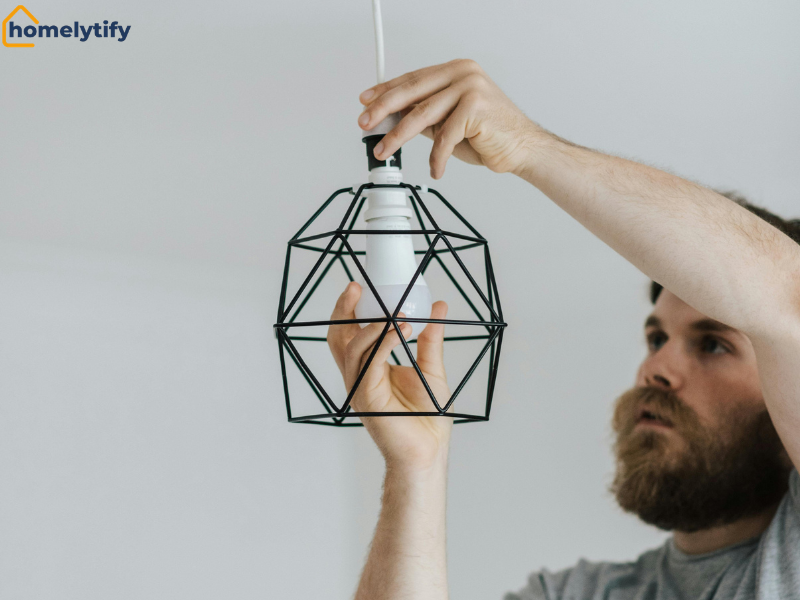
If the bulb is in a basement fixture, a lamp in a far room, or behind a concrete wall, the WiFi signal might not be strong enough during pairing. Temporarily screw the bulb into a lamp close to your router within 20 feet, complete the setup, and then move it back. Once paired, most bulbs maintain a more stable connection than they can establish during first-time setup.
Restart in the Right Order
Power-cycle your router and your phone before starting the setup process. This clears any stale connections. Then: reset the bulb (using the on/off cycle), connect your phone to 2.4 GHz WiFi, open the app, and add the device.
Do it in this exact order. When people try multiple failed attempts and keep hitting “retry” in the app, the app sometimes gets stuck in a loop. Closing the app completely and starting from scratch usually breaks that loop.
Smart Bulb App Not Detecting Device? Here’s What to Check
This is a frustrating one. The bulb is on, it’s blinking (which means it’s ready to pair), but the app just says it can’t find any device. A few things cause this.
Force Close and Reopen the App
Don’t just minimise the app. Actually, close it. On iPhone, swipe it away from the app switcher. On Android, go to Settings, find the app, and tap Force Stop. Then reopen it. Apps can get stuck in a state where they’re not scanning for new devices correctly.
Clear App Cache
On Android, go to Settings > Apps > [your smart bulb app] > Storage > Clear Cache. This doesn’t delete your account or your device list. It just clears temporary files that can sometimes interfere with device discovery.
Try a Different Connection Method
Most smart bulb apps offer more than one way to connect. The default is usually EZ mode or standard WiFi setup. If that fails, look for an option called AP mode or Access Point mode. In AP mode, your phone connects directly to the bulb’s own temporary WiFi signal, then hands off your home network credentials. It’s a bit more steps, but it works when the standard method doesn’t.
Also, check that Bluetooth is enabled on your phone. Some apps use Bluetooth to detect the bulb during initial setup, even if the bulb ultimately connects over WiFi.
Common Smart Bulb WiFi Setup Problems (And How to Avoid Them)
Here’s where most people get stuck, not because the product is broken, but because of small things that derail the whole process.
Trying to set up on 5 GHz WiFi. Always connect your phone to 2.4 GHz before opening the app.
Not resetting the bulb before re-pairing. If a previous setup attempt failed, the bulb might have partial data stored on it. Always do a fresh reset before trying again, don’t just hit retry.
Using a smart dimmer switch on the circuit. Smart bulbs need a regular on/off switch. If there’s a dimmer on the circuit, the bulb might not get enough power, which causes erratic behaviour during setup and afterwards. Replace the dimmer with a standard switch, or set the dimmer to full power before pairing.
Standing too close to the router during setup. Counterintuitive, but your phone switching to 5 GHz when you’re near the router is a real problem. Keep some distance or manually lock to 2.4 GHz.
Entering the wrong WiFi network during setup. In apartments, especially, you might see your neighbour’s network listed. Double-check you’re entering credentials for your own network.
When Cheap Smart Bulbs Are the Actual Problem
This isn’t meant to be a knock on budget smart bulbs; plenty of affordable options work perfectly fine. But there’s a tier of very cheap smart bulbs that have genuine firmware problems or inconsistent hardware, and I learned that the hard way.
I once ordered a pack of four unbranded bulbs from an online marketplace. No recognisable name on the box, vague instructions, and an app that looked like it hadn’t been updated in two years. They wouldn’t reset. I tried the five-cycle on/off method at least a dozen times. Sometimes the bulb would flash once and stop.
Sometimes nothing at all. The blinking pattern never matched what the paper instructions showed. I moved the bulb two feet from the router, cleared my phone cache, reinstalled the app, but nothing worked. Two out of the four behaved the same way. That’s not a user error. That’s a defective batch.
Compare that to the Kasa KL130, which paired through the Kasa app in under two minutes. The setup was almost boring, and boring is exactly what you want when you’re just trying to get a light to turn on from your phone.
Signs that the bulb itself might be the issue: it fails to reset no matter how many cycles you try, the blinking pattern doesn’t match the instructions, or it connects once and never reconnects after a power cut.
If you’ve gone through every fix in this guide and still can’t get it working, try a trusted brand before blaming your router or phone. Kasa (TP-Link), Govee, and Sengled are solid at the budget end. Philips Hue and LIFX cost more, but their hardware is consistent enough that setup problems are rare.
One thing worth knowing: many budget bulbs, including some sold under random brand names, actually run on a Tuya chip inside. If the brand’s own app keeps failing, try the Smart Life or Tuya Smart app instead.
The underlying platform is more stable than a lot of the white-label apps built on top of it. This fix saved me an hour of frustration with one of those no-name bulbs that actually did eventually connect, just not through the app it came with.
Conclusion
Smart bulb WiFi setup problems are genuinely annoying, but almost all of them come down to a handful of fixable issues: the wrong WiFi band, a bulb that wasn’t properly reset, a weak signal, or an app that got stuck. The fix is rarely complicated; it’s usually just knowing what to check and in what order.
Start with the 2.4 GHz check. If that’s not the issue, reset the bulb and try again from scratch. If the app isn’t detecting the device, clear the cache and try AP mode. And if you’ve tried everything and the bulb still won’t cooperate, it may genuinely be defective, and that’s worth knowing sooner rather than later.
Once your smart bulb is connected, keep your router firmware updated and avoid putting smart bulbs on circuits with dimmers. Those two things alone prevent most offline and disconnection problems down the road.
Frequently Asked Questions
Why does my smart bulb keep going offline after setup?
Usually a weak WiFi signal. Try a WiFi extender or move your router closer. Also, check your router’s admin panel for a connected device limit — if you’ve hit the cap, older devices get dropped.
Can I connect a smart bulb to 5 GHz WiFi?
Most can’t. If the specs don’t mention dual-band support, assume 2.4 GHz only.
My smart bulb is blinking, but the app won’t detect it. What’s wrong?
Try AP mode instead of the standard setup. See the “Smart Bulb App Not Detecting Device” section above.
How many times do I need to turn the bulb on and off to reset it?
Five times for most brands. If that doesn’t work, try three cycles or a longer pause between switches. Check your instruction sheet for your specific model.
Why does my smart bulb work with the app but not with voice control?
The bulb is connected but not linked to your voice assistant. Open Alexa or Google Home, add the bulb’s app as a linked service, then run “discover devices.
My bulb connected once but never reconnects after a power cut. Is it broken?
Not necessarily. Go to your router admin panel and assign the bulb a fixed IP address. This prevents the router from assigning it a different address after every outage, which is a common cause of reconnection failures.